Menus and sessions
You see these screens before the radar screen. On them, you start a new session, continue a saved session, or start a tutorial.
The main menu
Section titled “The main menu”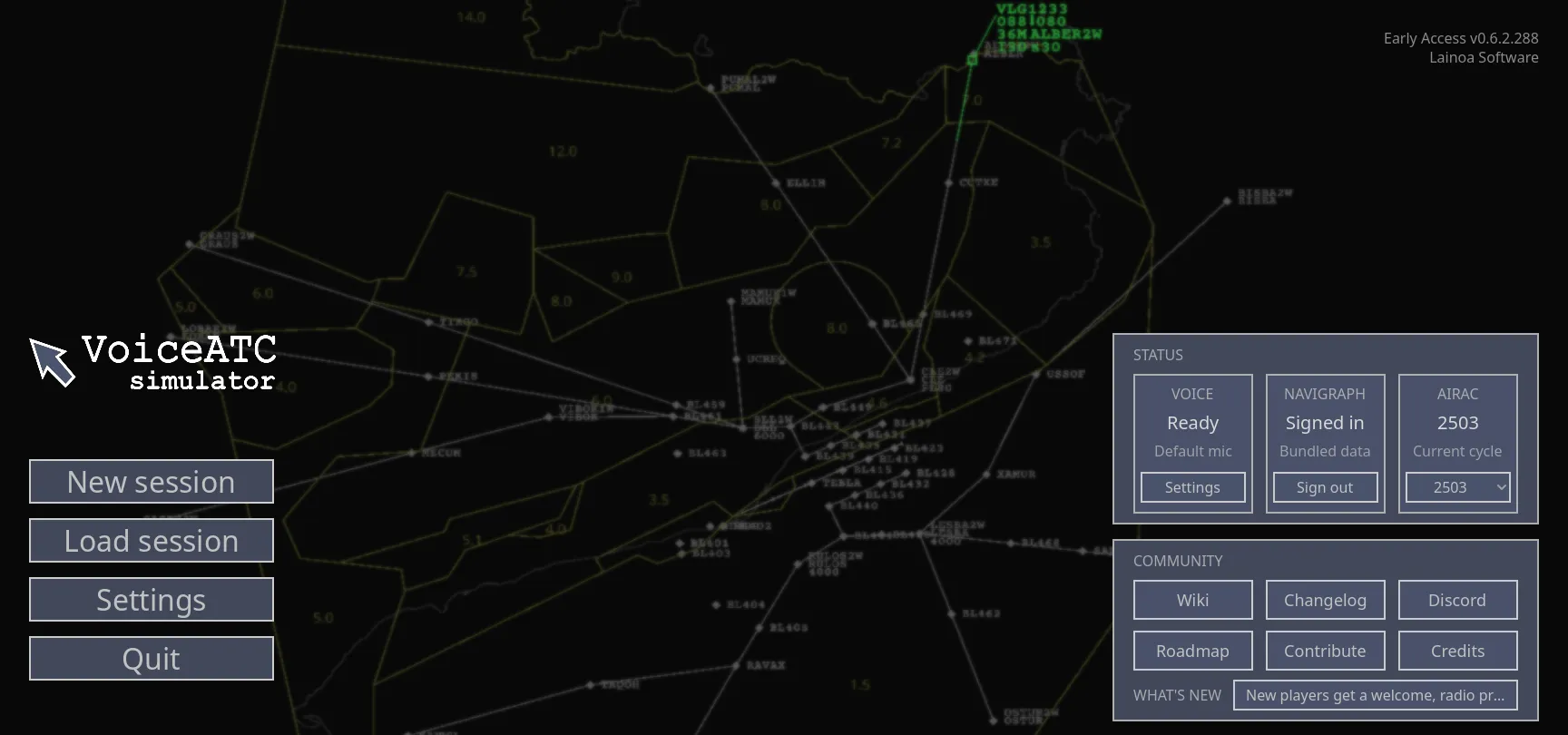
- New Session — prepare and start a session.
- Load Session — continue a saved session with its initial airport and traffic.
- Settings — Display, Audio, Voice, Privacy, Skin and Controls.
- Status — Voice, Navigraph and AIRAC.
- Community — links to the wiki, changelog and community services.
Changes in 0.6.2
Section titled “Changes in 0.6.2”| Control in 0.6.1 | Control in 0.6.2 |
|---|---|
| Tutorials | Tutorials — four short tutorials, not the video tutorials. Refer to The tutorials. Wiki in Community opens this wiki. |
| Mods | Modding in Community — opens the Modding part of the website. |
| Report bugs | Removed. Tell us about problems in Discord. We help you there. |
| New Session / Load Session | New session / Load session — the same buttons with new labels. |
| Links at different edges of the screen | Two panels on the right side, Status and Community. |
| — | Changelog — shows the notes for each game version. The notes are part of the game. |
| — | Roadmap. |
The menu shows New session, Load session, Tutorials, Settings and Quit. Until you complete the first tutorial, Tutorials is the selected item when the menu opens. The label on its right shows the next tutorial. When you open Settings from the main menu, it also shows a Tutorials button. You can start each tutorial from the main menu or from Settings.
Status shows the steps that you must do before you start a session. Voice always shows one clear value:
| Value | Condition | Step |
|---|---|---|
| Off | Voice recognition is off. The game keeps the saved checks. | None. |
| Not checked | The game has no saved check of the microphone or the speaker. | Check voice. |
| Finish check | One part of the check is correct. | Continue does the check only for the missing part. |
| Recheck | Your selected microphone, speaker or pilot voice changed. | Use Recheck for only that part. |
| Ready | The saved checks agree with the selected microphone, speaker and pilot voice. The two devices are available. | None. |
| Needs attention | You must examine a selected route or engine. | Review opens Settings → Voice. |
When you open the main menu for the first time, the game shows Check voice and Not now only if the value is Not checked. After you press Not now, the game does not show these two buttons again. The Status row stays available. Below Voice, Navigraph shows your sign-in condition and AIRAC shows the data cycle. Voice, Navigraph and AIRAC each have one button for the next step.
Community has six controls: Wiki, Changelog, Discord, Roadmap, Modding and Credits. Near the panels, a short What’s new line gives the name of the last change. Changelog has all the notes. The version number is above the two panels. Give this number when you tell us about a problem.
After an update, Changelog opens one time on an installation that you updated. Close Changelog or press Escape, and it does not open again for that version. A new installation does not show this popup. You can press Changelog at all times to open it again and select previous versions. The notes are part of the game, thus you can read them offline.
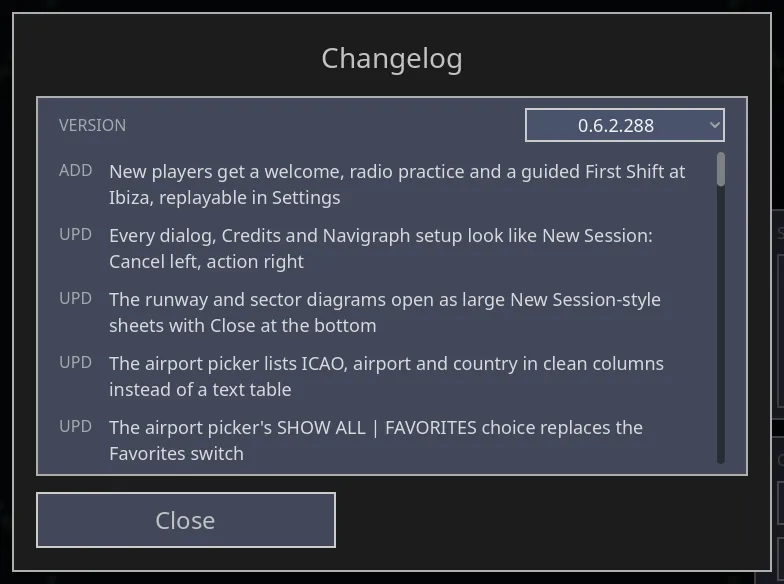
When you open the main menu for the first time, a welcome popup shows links to Discord and to the roadmap on the website. You can close this popup.
New Session and Load Session are not available until Steam makes sure that you have the game. All updates of the navigation data must also be complete. If you have the game, you are online, and the local authorization cache is damaged, the simulator repairs the cache. No step from you is necessary.
Start a new session
Section titled “Start a new session”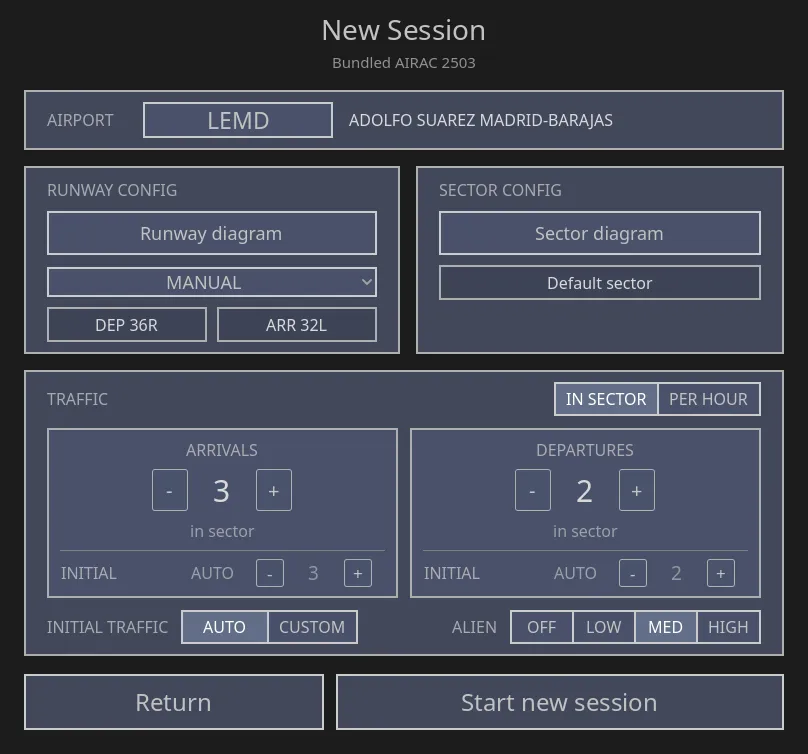
Airport. Press Select Airport. Type the ICAO code or the name of the airport to find it. To find an airport again quickly, select Add to favorites.
Kyiv Boryspil (UKBB) uses a representative pre-2022 traffic mix. The airport panel displays UKBB traffic represents pre-2022 operations. Frequencies and aircraft shares include estimates; this is historical traffic, not a current airline timetable.
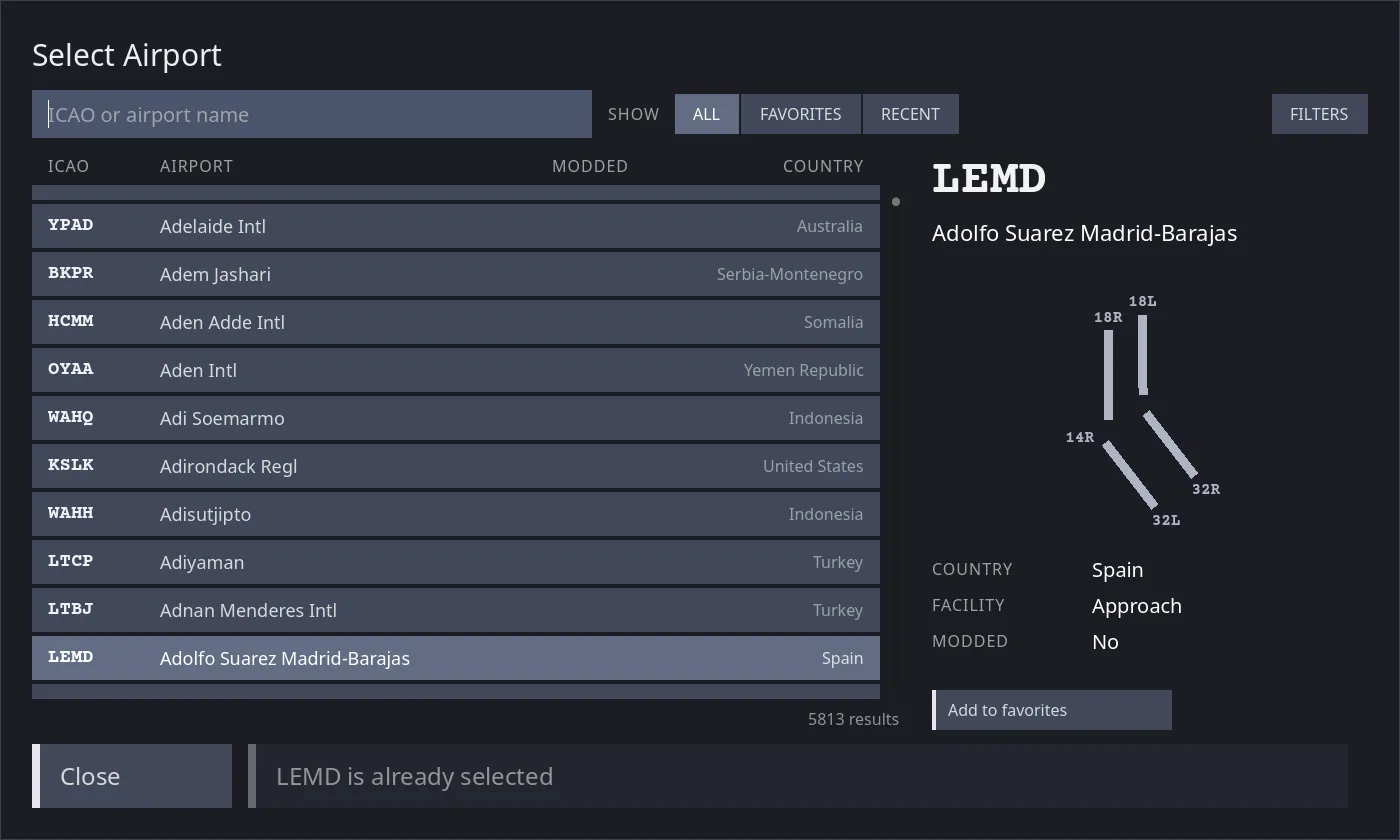
The airport list has the columns ICAO, Airport, Modded and Country. Modded shows Yes for an airport with community content.
- In SHOW, select ALL, FAVORITES or RECENT. RECENT shows the airports that you used last, the last one first.
- Use FILTERS to limit the list by continent, country and community content. Clear removes the search and the filters.
- SELECTED AIRPORT on the right shows the highlighted airport and a drawing of its runways.
- The button at the bottom shows Select and the ICAO code. Press Enter, or double-click a row, to select the airport.
Runways and sector. The right half of the screen has two tabs, RUNWAYS and SECTOR. In RUNWAYS, you select in the list on the left. The map on the right shows the result.
- PRESETS lists the runway configurations of the airport, then Manual.
- Select Manual to show the RUNWAYS rows. Each row is one runway with its two ends. Set ARR or DEP for each end.
- You can also click a runway end on the map, and set ARR or DEP there.
- On the map, an arrow points into each runway end where arrivals land. An arrow points out past the far end of each departure runway.
- Until you select the arrival and the departure runways, the empty tag shows Pick a runway in amber. Start new session is not available.
In SECTOR, select Default sector or a position of a community sector configuration. The map shows the sector with its name, its frequency and its altitude limits. Usually, the game selects the sector.
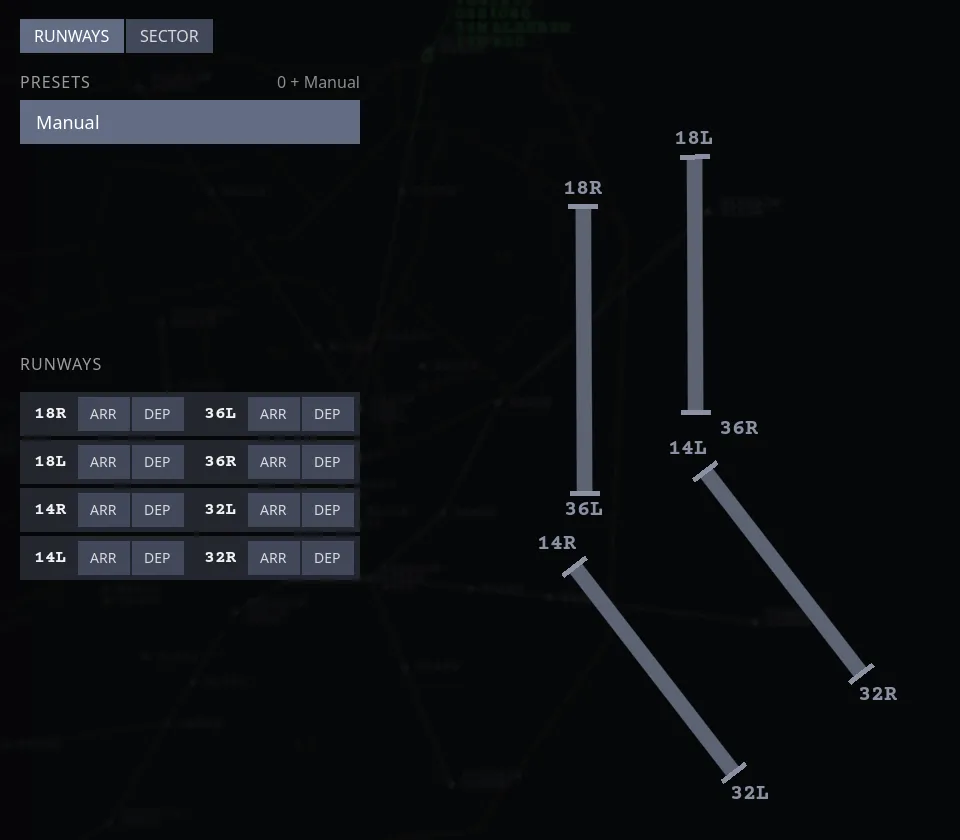
The game uses the sector that you select for the map and for the session. Default sector is a circle around the airport, from 40 NM to 100 NM. Its radius is the middle value of the distances to the first fixes of the STARs. An airport without STARs gets 70 NM. The radar does not draw this circle. Some arrivals do not contact you, and their remaining route stays out of your contact area. External ATC controls these arrivals through approach and landing.
Traffic. Set Arrivals, Departures and the optional Alien traffic. If a count is zero, there is no traffic of that type.
For the same traffic, the closed beta reduces the processor time for aircraft updates and radar symbols. Not in 0.6.2.552
Select In sector to set different targets for arrivals and departures in your sector. Select Per hour to set their rates for each hour. The game keeps the two sets of values. New settings start at 3 arrivals and 2 departures in sector.
Your first three sessions start with less traffic: 4 arrivals, 1 departure and no alien traffic, with the label Relaxed · first sessions. Change a value to use your settings. During the session, you can adjust the mode and the targets in the traffic panel.
In sector, arrivals are on your scope when the session opens. More arrivals come onto the edge of the scope at the rate at which you control them. If arrivals wait for an approach clearance, the game sends less new traffic. The aircraft that the scope shows always continue. Alien is Off, Low, Med or High.
You cannot assume alien traffic. It does not ask you for instructions at its clearance limit, and it does not tell you that it holds.
Initial traffic can be Auto or Custom. Each flow shows its Initial count. With Auto, this count is the number of aircraft when the session opens. With In sector, this count is your sector target. With Per hour, the game calculates this count. It multiplies your rate for each hour by the time that aircraft stay in your sector.
≈ AUTO identifies an estimate. The estimate stays until you control traffic at that airport, runway and sector one time. If you change an Auto count, the setting changes to Custom. With Custom, you can set different initial counts for arrivals and departures, and zero is permitted.
New aircraft come in as usual and keep safe spacing. Thus, the number of aircraft in the session can be more or less than your target. If you decrease the target, the aircraft in the session complete their flights.
New arrivals are at least 10 NM apart, as when a center transfers them to approach. A departure waits 2 or 3 minutes behind a heavier departure from the same runway because of wake turbulence. New in 0.6.3.4
Not in 0.6.2.552 If the routes of two arrivals join before the center transfers them, the arrivals also stay at least 10 NM apart until the center transfers them. An arrival that is faster than the arrival in front of it also stays at least 10 NM behind it. Thus, the center does not transfer two arrivals to you in a conflict alert.
Start. If the button is not available, its label tells you the item that is missing. When you start the game for the first time, Syncing route data… can show for a short time.
The screen always has the same dimensions. If you cannot start the session, the Start button shows the cause, for example Pick an airport. To see the full cause, put the mouse pointer on the button. The screen does not show more boxes with information.
Load a save
Section titled “Load a save”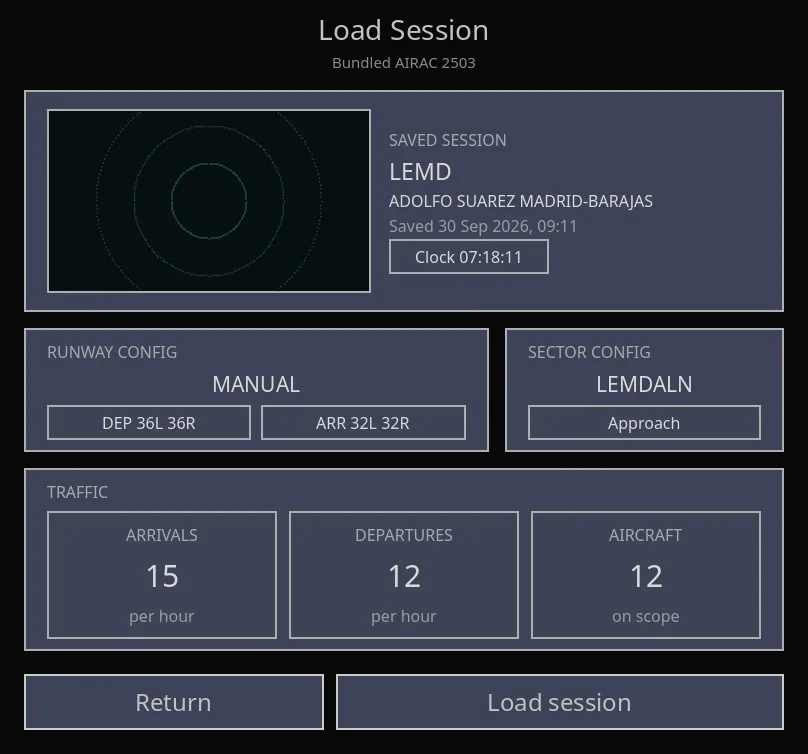
- Select a save from the list.
- Press Load session.
- Wait until the game loads the airport, the traffic and the condition of the routes.
You do not select the airport or the runways again, because the save contains them. If the list is empty, start a new session first. Before you can load a save, the main menu can wait a short time for navigation data.
Load Session shows the session that you will continue. It shows the radar view at the time that you stopped the session, the airport, and the time that you saved. It also shows the session clock, the runway configuration, the sector and the traffic rates. The saved radar view is adjacent to this information.
Enter loads the save and Esc goes to the previous screen. While the navigation data updates, Load shows Navdata is updating… and waits. If there is no save, the screen tells you this and shows only Return.
The save also contains its traffic mode, targets, rates and runways. Thus, new arrivals, departures and en-route traffic continue after you load the save. Some older saves do not contain traffic rates or runways. These saves show 0 per hour and Not saved runways. Start a new session to save these values.
If the save file is damaged, the game loads the automatic backup file. The game made this file the last time that you stopped a session. The game then tells you about this file.
When you load a save, the game sets the transition level that you selected again. After you load the save, altitude readbacks and chart labels use that level.
A new save keeps the times of the next arrivals and departures. These aircraft come in at their saved session times. A save from a previous version loads its aircraft and traffic rates. Then the game makes new traffic from the saved session clock. The game also sets your selected aircraft and the positions of the labels again.
The pause menu
Section titled “The pause menu”During a session, Escape opens the pause menu. If a popup or menu is open, Escape closes it first. While the pause menu is open, all traffic stops. P or the top-bar PAUSE button stops traffic without the menu. Not in 0.6.2.552 While the pause menu is open, P does nothing. Close the menu to continue.
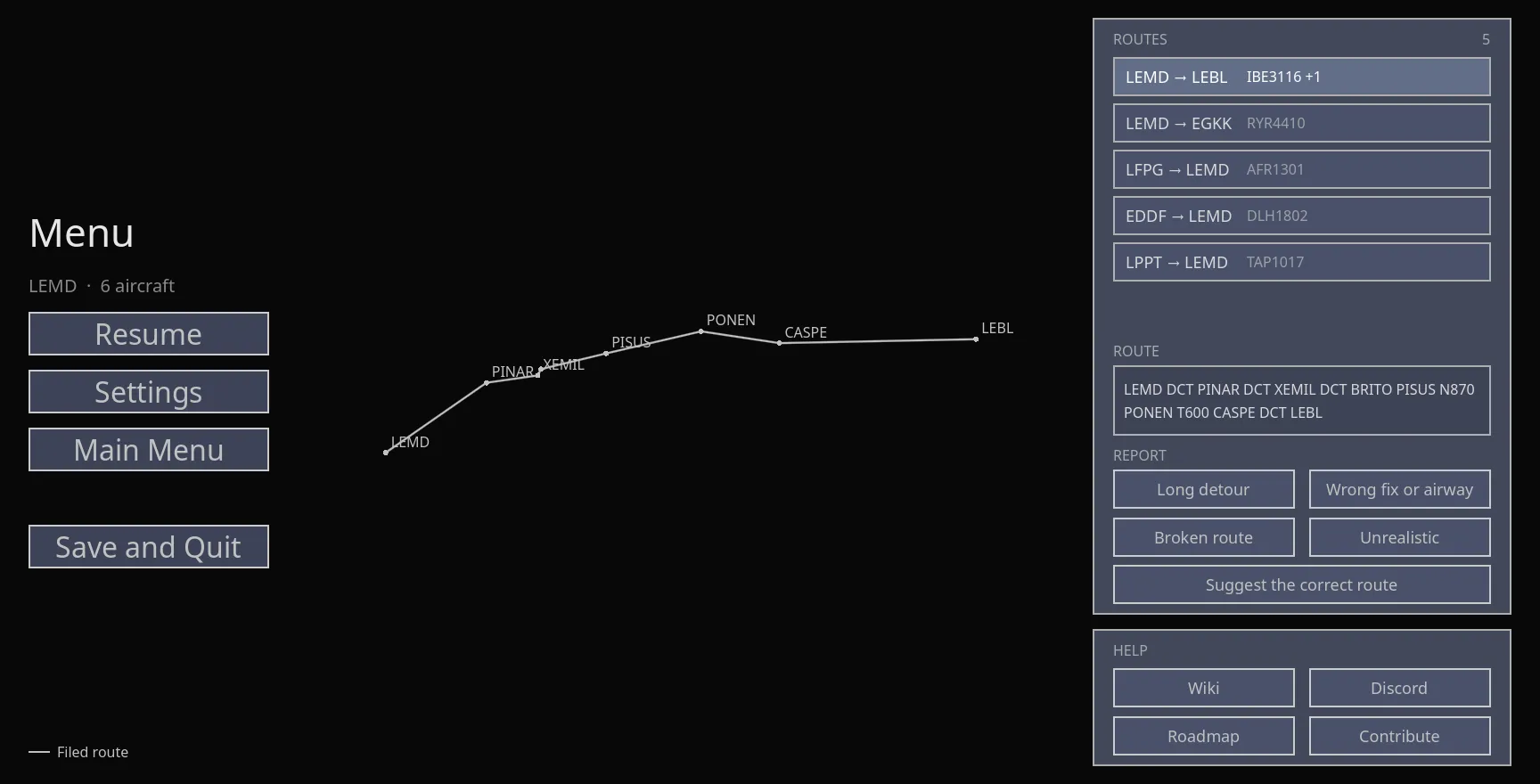
The pause menu has the name Menu, and it looks the same as the main menu. On the left, there are Resume, Settings and Main menu. Save and quit is below them, with a space between them. On the right, there are two cards, Routes and Help.
Help contains Wiki, Commands, Discord, Roadmap and Modding. Commands opens the Sheet to print: all the commands on one page, with a color for each level.
Routes shows a list of the routes on your scope. The selected flight is first.
- Select a route to show it on the radar. Thus, you can see the route and stay in the game.
- Tell us about an incorrect route. If diagnostics sharing is on, a route that you select shows four labels: Long detour, Wrong fix or airway, Broken route and Unrealistic. One click sends the report. If you click the incorrect label, you can use Undo for some seconds. If diagnostics sharing is off, the game does not show the labels.
- Suggest the correct route lets you type the correct route. The game examines the route while you type (for example Did you mean …?). It shows the route on the radar as a dashed line. Open route builder then opens the website with your route in it. On the website, you must press Queue and send the route. The game does not send the route for you.
A report contains only the airport pair and a fingerprint of the route. It does not contain the route. The telemetry does not contain the route that you type in Suggest the correct route. The website gets your route only when you press Open route builder.